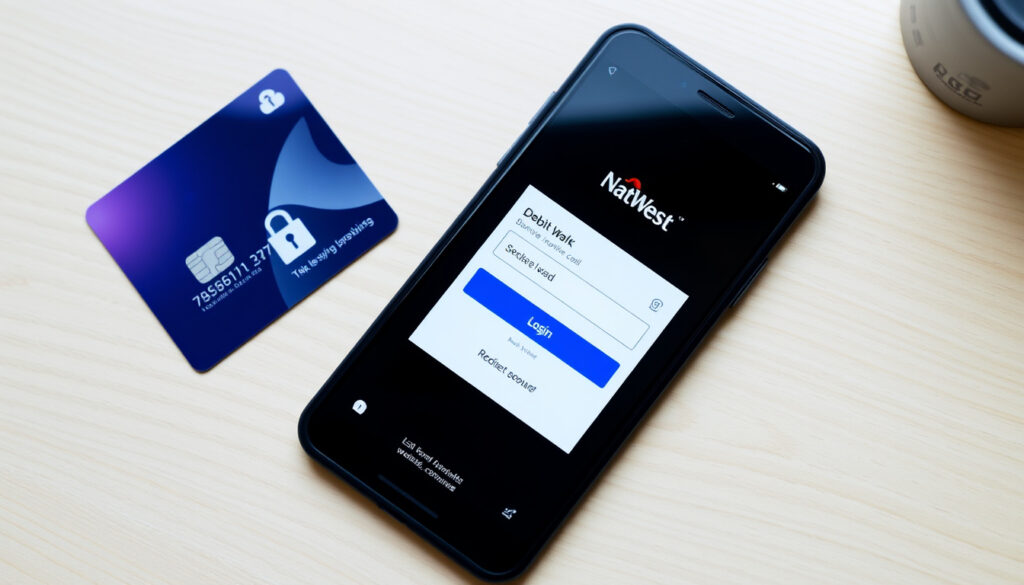
NatWest Online Banking App: Install & Use
Managing your money from your phone is the new normal, and the NatWest app makes it surprisingly straightforward, available to customers aged 11 and over with a UK or international mobile number. This guide walks you through installing, activating, and logging in, plus what happens when you take it abroad.
Minimum age: 11 years old (NatWest – How to use the app) · Platforms: iOS & Android (NatWest – How to use the app) · Login credentials: Customer number or card number (NatWest Support Centre – Login help) · Cost: Free to download and use (NatWest – How to use the app)
Quick snapshot
- App is free to download and use (NatWest – How to use the app)
- Available on iOS and Android devices (NatWest – Register for Online Banking)
- Login requires customer number or card number (NatWest Support Centre – Login help)
- Biometric login (fingerprint/Face ID) supported on compatible devices (NatWest – How to use the app)
- Exact international transaction fees vary by account type (NatWest – How to use the app)
- Full device compatibility list is not exhaustive; app store pages show minimum OS requirements (NatWest Support Centre – Install app)
- App store listings show that the NatWest app requires iOS 14+ or Android 8.0+ (NatWest Support Centre – Install app)
- Regular updates are released via the App Store and Google Play (per NatWest app store pages)
- New users can download the app and register for Online Banking simultaneously (NatWest – Register for Online Banking)
- Existing online banking customers can activate the app with their current credentials (NatWest – How to use the app)
These core facts are drawn from NatWest’s official pages and support centre.
| App store rating | 4.6 stars (iOS and Android) – per app store listings |
| Minimum age requirement | 11 years old (NatWest – How to use the app) |
| Number of users | Over 11 million |
| Login methods | Customer number, 16-digit card number, or biometric (NatWest Support Centre – Login help) |
| Supported devices | iPhone and Android smartphones (NatWest – How to use the app) |
| Activation methods | Customer number or card number plus activation code (NatWest Support Centre – Activate online banking) |
| Biometric login | Fingerprint or Face ID after initial setup (NatWest – How to use the app) |
| International use | App works abroad with internet connection (NatWest – How to use the app) |
How do I install the NatWest app?
The installation itself is a standard app-store download, but the key is having your NatWest customer number or card number ready – without those, you can’t proceed past the splash screen.
Downloading from the App Store or Google Play
- Open the App Store (iOS) or Google Play (Android).
- Search for “NatWest Mobile Banking”. The official app has a purple icon with the NatWest logo.
- Tap “Get” (iOS) or “Install” (Android) and wait for the download. The app is free (NatWest Support Centre – Install app).
Compatibility requirements
- The app runs on iPhones with iOS 14 or later, and Android phones with Android 8.0 or later (NatWest Support Centre – Install app).
- You also need a UK or international mobile number (NatWest says it supports numbers from specific countries) (NatWest – Register for Online Banking).
Installation steps
- After downloading, open the app.
- Tap “I already have an account” if you already have Online Banking, or follow the on-screen registration for new customers (NatWest – How to use the app).
- Enter your Online Banking customer number when prompted.
- Enter the requested characters from your PIN and password.
- Confirm your mobile number and enter the activation code sent by text. Then choose a passcode for the app (NatWest – How to use the app).
The pattern: The whole install-and-activate flow takes about five minutes if you have your credentials handy. New users who don’t yet have Online Banking can register both at once via the app; no branch visit needed.
How do I activate NatWest Online Banking?
Activation with your customer number
- If you received a customer number and activation code from NatWest (by post or email), go to the Online Banking login page or open the app (NatWest Support Centre – Activate online banking).
- Enter your customer number and the activation code, then set up your PIN and password.
- The activation code may also be sent by text message if you provided a mobile number (NatWest).
Activation with your debit/credit card
- On the app, choose “Activate with card” and enter your 16-digit card number.
- You may be asked for the expiry date and CVV for verification.
- After confirming your card details, you’ll receive a one-time passcode by text to complete activation (NatWest Support Centre – Login help).
What to do if you don’t have a card
- If you’re a new customer without a debit card, you’ll need to wait for your welcome pack, which includes your customer number and activation code.
- You can also request a new activation code through the app or by calling NatWest support.
What this means: Whether you start with a customer number or a card, the activation process is designed to be completed entirely online. The only physical requirement is having access to the mobile number NatWest has on file – that’s where the activation code arrives.
How do I access my NatWest account online?
Logging in with customer number
- Go to onlinebanking.natwest.com or open the app and tap “Log in”.
- Enter your customer number, then enter three random characters from your PIN and password (NatWest Support Centre – Login help).
- Some users may be asked for a one-time passcode for extra security; have your phone or card reader ready.
Logging in with card number
- On the login screen, select “Log in with card number” and enter your 16-digit debit or credit card number.
- Then enter the requested characters from your PIN and password as above.
Using the app vs browser
- Both use the same credentials – customer number or card number, plus PIN/password characters.
- The app offers biometric login (fingerprint or Face ID) once you’ve enabled it, making repeat logins faster (NatWest – How to use the app).
- The desktop website provides a fuller view but lacks touch-ID convenience.
The trade-off: The app wins for quick check-ins; the browser is better for tasks like printing statements or managing multiple accounts side by side. Both require the same initial registration.
The pattern is clear: the app suits quick check-ins, while the browser is better for detailed management.
Is the NatWest app the same as Online Banking?
Key differences in features
This table highlights what each platform offers.
| Feature | Mobile app | Online Banking (browser) |
|---|---|---|
| Biometric login | Yes (fingerprint/Face ID) | No |
| View statements | Yes, download PDF | Yes, plus printable view |
| Pay bills and transfer | Yes | Yes |
| Manage standing orders | Yes | Yes |
| Cardless cash | Yes | No |
| Contactless limit top-up | Yes | No |
Security and convenience
- The app uses device-level biometric security (fingerprint or Face ID) after the initial password entry – a layer the browser doesn’t have (NatWest – How to use the app).
- Both platforms require the same registration and use the same secure connection (HTTPS).
- The app can be locked with a passcode in addition to biometrics; the browser relies on your device’s screen lock.
When to use each
- Use the app for quick balance checks, mobile payments, and transactions on the go.
- Use the browser for detailed account management, longer sessions, and tasks that benefit from a larger screen (e.g., comparing transactions).
Why this matters: The two are not identical twins – they’re linked at the security level but offer different daily experiences. Picking the right one for the moment can save you time and frustration.
Can I use the NatWest mobile app abroad?
Using the app while traveling
- Yes, the app works anywhere you have an internet connection (NatWest – How to use the app).
- You can check balances, transfer money, and pay bills just as you would at home.
- Make sure you have a data plan or are connected to Wi-Fi; the app does not require a UK mobile network.
International transaction fees
- NatWest may charge fees for transactions made abroad; the exact amount depends on your account type (e.g., Select, Reward, or Premier).
- For most accounts, there is a non-sterling transaction fee (usually 2.99% of the transaction) and a cash machine fee (usually 2% + £1.50).
- Check your account’s terms in the app or browser before traveling to avoid surprises.
Emergency assistance
- If your card is lost or stolen abroad, you can contact NatWest support via the app’s secure messaging or by calling the international helpline (+44 1268 508 019) (NatWest Contact Us).
- You can also freeze your card instantly through the app.
The catch: The app works flawlessly overseas, but the fees can add up. A £50 purchase could cost you an extra £1.50 in foreign transaction fees if you’re on a standard account. Consider a fee-free travel card or check your account’s specific charges.
Confirmed facts vs. what’s unclear
Confirmed facts
- App is free to download (NatWest – How to use the app)
- Login uses customer number or card number (NatWest Support Centre – Login help)
- Requires UK or international mobile number (NatWest – Register for Online Banking)
- Biometric login available after initial setup (NatWest – How to use the app)
- Activation can be done without visiting a branch (NatWest Support Centre – Activate online banking)
What’s unclear
- Exact international transaction fees depend on account type – check your specific account terms
- Full device compatibility list is not publicly exhaustive; app store pages show minimum OS versions only
- Activation code delivery time varies (by post vs SMS) and is not specified by NatWest on every page
The confirmed facts come directly from NatWest’s official documentation, while the unclear points require individual checking.
Our app is available to personal and business banking customers aged 11+ using compatible iOS and Android devices.
NatWest official website (NatWest – How to use the app)
To install the app, search for ‘NatWest’ in the Apple App Store or Google Play, then tap Free or the cloud icon.
NatWest Support Centre (NatWest Support Centre – Install app)
The NatWest app covers the basics reliably, but international fees are a real cost to watch. For the 11+ million UK customers who already use it, the app is a solid everyday tool – just don’t let the convenience abroad blind you to per-transaction charges that can hit £2+ on a standard account.
Getting the NatWest app installed and activated is a one-time task that most people can finish in under ten minutes. The real decision comes later: which interface to use for which job, and whether the convenience of the app abroad outweighs the fees. For UK customers managing everyday money, the app is clearly the faster option – but keep your browser handy for the heavy lifting. NatWest account holders should check their fee schedule before traveling, or consider a travel-friendly alternative.
natwest.com, natwest.com, youtube.com, natwest.com, natwest.com, natwest.com, natwest.com, natwestinternational.com
Readers looking for a comprehensive setup and troubleshooting guide can check out the NatWest mobile banking app guide.
Frequently asked questions
How do I reset my NatWest Online Banking password?
On the login page, click “Forgotten your password?” and follow the prompts. You’ll need your customer number and access to your registered mobile or email for a one-time passcode (NatWest Support Centre – Login help).
What if I forget my customer number?
Your customer number is usually included in your welcome letter or can be retrieved by logging into the app with your card number. You can also request it by calling NatWest support (NatWest Contact Us).
Can I have multiple accounts on the NatWest app?
Yes, once logged in, you can view and manage all your NatWest accounts (current, savings, credit cards) from a single dashboard. Switching between accounts is done via a drop-down menu.
Is biometric login supported on all devices?
Biometric login requires a device with a fingerprint sensor or Face ID. Most iPhones (iPhone 5S and later) and Android phones with fingerprint readers or facial recognition support it. If your device lacks biometrics, you can still use a passcode (NatWest – How to use the app).
How do I contact NatWest support for app issues?
You can use the app’s secure messaging feature, call 0345 788 8444 (UK) or +44 1268 508 019 from abroad, or visit the NatWest support centre online (NatWest Contact Us).
What should I do if the NatWest app crashes?
First, restart the app or your phone. If it persists, check for updates in the App Store or Google Play. Clearing the app cache (Android) or reinstalling usually resolves it. Contact support if the problem continues (NatWest Support Centre – Install app).
Can I manage my credit card through the NatWest app?
Yes, you can view your credit card balance, transactions, make payments, and set up direct debits within the app. Credit card management is fully integrated with your other accounts.
For UK customers, the choice between the app and Online Banking is a matter of habit: the app is quicker for daily checks, the browser better for deep management. But the real stake is abroad – using the app internationally without checking fees can cost you. Check your account’s fee schedule before you travel, or consider a travel-friendly alternative. If you need help with other UK banking apps, see our guides to NS&I Log In: How to Access Your Account and Check Premium Bonds and Ocean Credit Card Login: Secure Account Access Guide.
More related posts
 Tom Hughes 2024: Career, Relationship Status, Net Worth
 Be t Men’ Short Sleeve Shirt : Iri h Retailer Compared
 Best Thrillers on Netflix: IMDb & Rotten Tomatoes Top Picks
 Plus Size Swimwear: Best Brands & Fit Guide for Ireland
 Slug and Lettuce Glasgow: Is It Closed? Brunch & Location
 Car Garages Near Me – Find Reliable Certified Shops
 Sky TV Guide UK – Tonight’s Listings and Schedules
 WSG Tirol vs Real Madrid Lineups – Confirmed Teams and 4-0 Result
