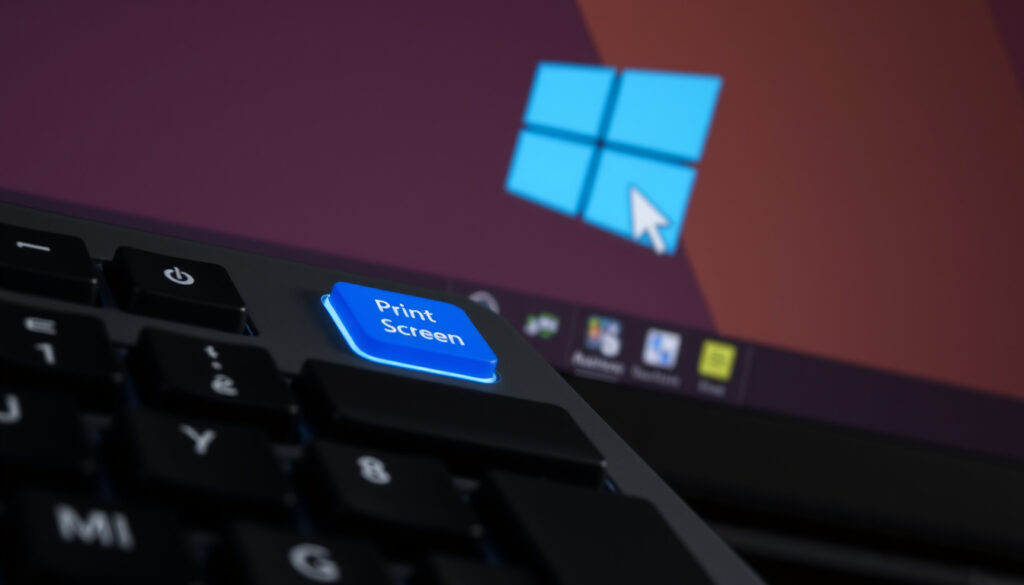
How to Print Screen on Windows 10 & 11: Keyboard Shortcuts
Anyone who has needed to capture a quick screenshot knows the feeling: you press a key, and nothing happens—or the image vanishes into the clipboard. Taking a screenshot in Windows doesn’t have to be mysterious.
Default screenshot key: PrtScn ·
Saves automatically with: Win + PrtScn ·
Active window shortcut: Alt + PrtScn ·
Snipping Tool shortcut: Win + Shift + S ·
Screenshot folder (Windows): Pictures\Screenshots ·
Clipboard paste command: Ctrl + V
- Press PrtScn to copy the full screen to clipboard.
- Press Win+PrtScn to automatically save the full screen to Pictures\Screenshots.
- Press Alt+PrtScn to capture only the active window.
- Press Win+Shift+S to open the Snipping Tool overlay for region selection.
Quick snapshot
- PrtScn copies the entire screen to clipboard (Dell Support – manufacturer guidance)
- Win+PrtScn saves full screen to Pictures\Screenshots (T&E Repair – troubleshooting guide)
- Alt+PrtScn captures only the active window (Dell Support – active window shortcut)
- Win+Shift+S opens Snipping Tool overlay (Microsoft Support – official documentation)
- Whether F12 captures screenshots in every Steam game without user configuration (YouTube tutorial – community demonstration)
- Exact behavior of PrtScn on laptops with Fn lock toggled on or off (Dell Support – laptop precautions)
- PrtScn (clipboard) → Win+PrtScn (auto-save) → Snipping Tool (annotations) – increasing convenience (Microsoft Support)
- F12 screenshot key originates from gaming platforms like Steam, not Windows (YouTube tutorial)
- After capture: paste clipboard images into Paint, Word, or email before saving (Dell Support)
- Snipping Tool allows immediate annotation and sharing (Microsoft Support)
Four key shortcuts, one pattern: each method trades convenience for control. The following table shows what each combination does and where the image ends up.
| Shortcut | What it captures | Destination |
|---|---|---|
| PrtScn | Full screen | Clipboard |
| Alt+PrtScn | Active window | Clipboard |
| Win+PrtScn | Full screen | Pictures\Screenshots |
| Win+Shift+S | Selected region, window, or full screen | Clipboard + optional save |
What are three ways to take a screenshot on a PC?
Using the Print Screen key (PrtScn)
The Print Screen key, often labelled PrtScn or PrntScrn, sits in the upper right of most desktop keyboards. Pressing it copies the entire display to the clipboard without any visual feedback (Dell Support – manufacturer guidance). To actually see the image, you must paste it into an application such as Paint, Word, or an email compose window using Ctrl+V. This method is useful for quick captures where you plan to edit or send the image immediately.
The catch: because nothing appears on screen, many users think the key doesn’t work. On laptops, PrtScn often shares a key with another function and requires the Fn modifier – for example, Fn+F10 on some Dell models (Dell Support – laptop-specific advice).
The clipboard-only approach means you cannot retrieve a forgotten screenshot hours later. Anyone who relies on PrtScn alone risks losing captures if they accidentally copy something else before pasting.
Using Windows key + Print Screen
Press Win+PrtScn and the screen dims momentarily – a built-in confirmation that a screenshot was taken. The image is automatically saved to Pictures\Screenshots as a timestamped .png file (Dell Support). This is the most straightforward way to capture the full screen and have the file available immediately without extra steps.
On Windows 10 and 11, this shortcut works on any laptop or desktop that supports the hardware key combination. The auto‑save feature eliminates the need to open an image editor for every capture.
Using Snipping Tool (Win+Shift+S)
The Snipping Tool overlay, triggered by Win+Shift+S, offers four capture modes: rectangular, freeform, window, and full-screen (Microsoft Support – official Snipping Tool documentation). After selection, the capture is copied to the clipboard and a notification appears offering to annotate or save it. You can also use Ctrl+PrtScn within Snipping Tool to capture drop-down menus (Microsoft Support).
The implication: Snipping Tool gives the most control, especially for partial captures. However, it requires a few more clicks to save annotated files permanently.
For everyday screen captures, the classic Print Screen key still offers the most universal access, but the Snipping Tool provides better control for specific selections.
How do I Print Screen with F12 key?
Printing screen in Windows using F12 (if supported)
On standard Windows configurations, F12 is not a system-level screenshot key. Some keyboards, such as the Dell KM3322W, map Fn+Insert as the Print Screen function (Dell Support – keyboard variation warning). You can reassign F12 to act as PrtScn using third-party remapping tools, but this is not a built-in option.
Taking screenshots in Steam with F12
Steam, the largest PC gaming platform, uses F12 as its default screenshot key. Pressing it during gameplay captures the current frame and stores it in Steam’s screenshot manager (YouTube tutorial – Steam screenshot workflow). This only works while a Steam overlay is active; it does not capture the Windows desktop or non-Steam applications.
Troubleshooting when F12 doesn’t capture
If F12 fails in a game, check that the Steam overlay is enabled in Settings > In-Game. Also verify no other program (e.g., a browser’s developer tools) has taken control of the F12 key. On some laptops, the function row may be set to media keys by default, requiring Fn+F12 instead (Dell Support – illuminated function row note).
Gamers who rely on Steam’s F12 shortcut get instant captures inside games, but lose the ability to screenshot menus or desktop without switching tools. For Windows-native screenshots, the dedicated PrtScn shortcut (or its variants) remains the more reliable choice.
The catch: unlike Windows-native shortcuts, Steam’s F12 capture is not available outside of games, making it a niche tool rather than a general‑purpose solution.
How do you get to Screenshots on PC?
Finding screenshots saved with Win+PrtScn
Images captured with Win+PrtScn are stored in the folder C:\Users\[YourUsername]\Pictures\Screenshots. Each file is automatically named Screenshot (1).png, Screenshot (2).png, and so on (Dell Support – file location). You can also access this folder quickly by pasting %userprofile%\Pictures\Screenshots into File Explorer.
Locating Snipping Tool captures
When you save a Snipping Tool capture, the default location is the same Pictures\Screenshots folder. The tool also allows you to choose a different folder at save time (Microsoft Support). If you copy to clipboard without saving, the image exists only in memory until pasted into another program.
Accessing screenshots from the clipboard
Any screenshot copied via PrtScn, Alt+PrtScn, or Snipping Tool (without save) lives in the clipboard. To keep it permanently, open Paint, press Ctrl+V, then save the file (Dell Support – saving from clipboard). The clipboard can hold only one image at a time, so each new capture overwrites the previous one.
The pattern: auto-saved methods require no extra steps, while clipboard methods give more flexibility but demand immediate action. For frequent captures, Win+PrtScn offers the best balance of ease and reliability.
Confirmed facts vs. what’s unclear
Confirmed facts
- PrtScn copies full screen to clipboard (Dell Support)
- Win+PrtScn saves to Pictures\Screenshots (Dell Support)
- Alt+PrtScn captures active window (Dell Support)
- Win+Shift+S opens Snipping Tool overlay (Microsoft Support)
- Snipping Tool supports rectangular, freeform, window, and full-screen modes (Microsoft Support)
What’s unclear
- Whether changing the Fn key behavior via BIOS affects PrtScn on all laptop brands (Dell Support)
- If configuring PrtScn to open Snipping Tool (Settings > Ease of Access > Keyboard) works consistently across Windows 10 and 11 builds (T&E Repair – third-party analysis)
- Exact screenshot behavior on keyboards without a dedicated Print Screen key when no Fn alternative is documented by the manufacturer (Dell Support)
- Whether F12 captures screenshots in every Steam game without user configuration (YouTube tutorial)
- Exact behavior of PrtScn on laptops with Fn lock toggled on or off (Dell Support – laptop precautions)
- Whether the tablet shortcut Win+Volume Down works as a full‐screen capture on all Windows tablets (Dell Support)
Understanding what is confirmed versus uncertain helps users decide which methods to rely on for different scenarios.
Expert perspectives
“Use Snipping Tool to capture a screenshot, or snip, of any part of your screen. You can capture images in four modes: rectangular, freeform, window, or full-screen.”
Microsoft Support (official documentation)
“Windows + PrtScr captures the entire screen and automatically saves to the Pictures > Screenshots folder. There will be a brief dimming of your screen to confirm the capture.”
Dell Support (manufacturer guidance)
For anyone who frequently shares or documents their desktop, mastering these shortcuts eliminates wasted steps. The combination of Win+PrtScn for full-page saves and Win+Shift+S for targeted captures covers almost every scenario. The choice is simple: if you need a quick save, use the dim screen combo; if you need precision, use the overlay.
For a broader overview of capturing your screen, you can explore additional screenshot methods for Windows that cover similar tools and shortcuts.
Frequently asked questions
What does Ctrl+PrtScn do on Windows?
It opens the Snipping Tool menu capture mode (gray screen) when Snipping Tool is active (Microsoft Support).
How do I take a screenshot on a laptop without a Print Screen key?
Try Fn+Insert, Fn+F10, or use the on-screen keyboard and click PrtScn. Alternatively, use Win+Shift+S for the Snipping Tool overlay (Dell Support).
Where are my screenshots saved when I press Win+PrtScn?
They are saved automatically to C:\Users\[YourUsername]\Pictures\Screenshots (Dell Support).
Can I take a screenshot on a Mac with a Windows keyboard?
Yes, use Win+Shift+3 (full screen) or Win+Shift+4 (selection) – the Windows key acts as Command.
How do I fix the Print Screen key not working?
Check if Fn lock is enabled, update keyboard drivers, or restart the computer. On some systems, go to Settings > Ease of Access > Keyboard and toggle “Use PrtScn button to open screen snipping” off then on (T&E Repair – troubleshooting guide).
What is the difference between Print Screen and Snipping Tool?
Print Screen methods copy the image to clipboard (or save it) without editing. Snipping Tool allows selecting a region, annotating, and saving immediately (Microsoft Support).
How do I take a screenshot of only one window?
Click the window to make it active, then press Alt+PrtScn. The image is copied to clipboard and can be pasted into any editor (Dell Support).
These answers cover the most common questions about screenshot shortcuts.
For further reading, see our guides on creating a new email account and logging into another Gmail account.
More related posts
 Robin Windsor: Strictly Come Dancing star’s death and inquest
 Matthew Broome: Age, Biography, and Who He Has Dated
 Roald Dahl Book Guide: Famous, Darkest, and Age Picks
 WWE 2K25 Locker Codes: Active List and Redeem Guide
 Lacey Chabert: Hallmark Controversy, Biography, Family & FAQs
 TWICE Members: Age, Nationality, and Roles
 Bernard Hill: Cause of Death, Movies, Marriage, and Career
 WSG Tirol vs Real Madrid Lineups – Confirmed Teams and 4-0 Result
